How to Fix Discovered – Currently Not Indexed in Google Search Console

Written by Shivam Panchal
Founder & SEO Consultant, SEO Shades
You’ve published 50 new blog posts on your website. You’ve done the keyword research, optimized the content, added internal links, and written SEO titles and meta descriptions for every page.
But when you search for your target keywords on Google, your pages are nowhere to be found.
You open Google Search Console and notice a status that raises an important question: Discovered – Currently Not Indexed.
Google knows your page exists, so why isn’t it indexing it?
Is there a technical SEO issue? Is the content too weak? Are you missing backlinks? Or is Google simply not crawling your website as often as you expect?
Here’s the thing: clicking the Request Indexing button repeatedly won’t necessarily solve the problem. Before trying random fixes, you need to understand what’s preventing Google from crawling your URLs and whether those pages should be indexed in the first place.
In this guide, I’ll Walk you through how to diagnose and fix the Discovered – Currently Not Indexed issue in Google Search Console. We’ll cover internal linking, XML sitemaps, server accessibility, content quality, crawl budget, canonical tags, and the common mistakes that waste time without addressing the actual problem.
By the end, you’ll have a practical process for deciding which pages need improvement, which pages deserve indexing, and which URLs you can safely leave alone.
What Does Discovered – Currently Not Indexed Mean?
When Google Search Console shows the status Discovered – Currently Not Indexed, it means Google has discovered a URL but has not crawled it yet, according to the reported indexing status.
In simple terms, Google knows the page exists, but Googlebot has not yet fetched its content for processing.
To understand this issue properly, you need to know the three main stages involved in getting a page into Google’s search index.
1. URL discovery
Google discovers a URL through sources such as XML sitemaps, internal links, and links from other known pages.
At this stage, Google knows the URL exists. That does not mean it has visited the page.
Related Post : What Is a Reciprocal Link in SEO? Is Link Exchange Safe or Risky
2. Crawling
Googlebot requests the URL and attempts to access its content.
During this stage, technical issues such as server errors, accessibility restrictions, or crawling problems may affect Google’s ability to retrieve the page.
3. Indexing
Google processes the crawled content and determines whether the page should be included in its search index.
Even after a page has been crawled successfully, indexing is not guaranteed.
The key distinction is simple:
Discovered does not mean crawled, and crawled does not mean indexed.
The Discovered – Currently Not Indexed status relates primarily to the gap between URL discovery and crawling.
Google does not have to crawl every discovered URL immediately. It prioritizes URLs based on its systems, available crawling resources, and other signals.
If a few low-priority pages remain in this status for a while, that does not automatically indicate a serious problem. However, if important service pages, product pages, or blog posts remain unindexed for an extended period, you should investigate.
Also, this status alone does not mean your website has received a Google penalty or suffered an algorithmic demotion.
Discovered vs. Crawled – Currently Not Indexed: What’s the Difference?
These two Google Search Console statuses are often confused, but they describe different situations.
| Factor | Discovered – Currently Not Indexed | Crawled – Currently Not Indexed |
| Google knows the URL exists | Yes | Yes |
| Google has crawled the page | Not yet, according to the reported status | Yes |
| Main area to investigate | Crawling priorities, internal links, server capacity, and URL patterns | Content value, duplication, canonicalization, and indexing eligibility |
| Does it guarantee future indexing? | No | No |
If the page is discovered but not crawled
Start by investigating whether Google can reach the URL efficiently and whether the page receives enough attention within your website’s structure.
Check internal links, server stability, sitemap accuracy, URL patterns, and possible crawling restrictions.
If the page is crawled but not indexed
Google has already accessed the page, so your investigation should focus more closely on whether the page provides distinct value, whether it duplicates other content, and whether its canonical and indexing signals are correct.
These are starting points, not definitive diagnoses. For example, content duplication may be worth reviewing across a website, but you cannot conclude that weak content caused a page to remain in the discovered state when Google has not yet crawled it.
Getting this distinction right matters. If you misdiagnose the problem, you can spend hours improving the wrong thing.
Step 1: Identify the Affected URLs in Google Search Console
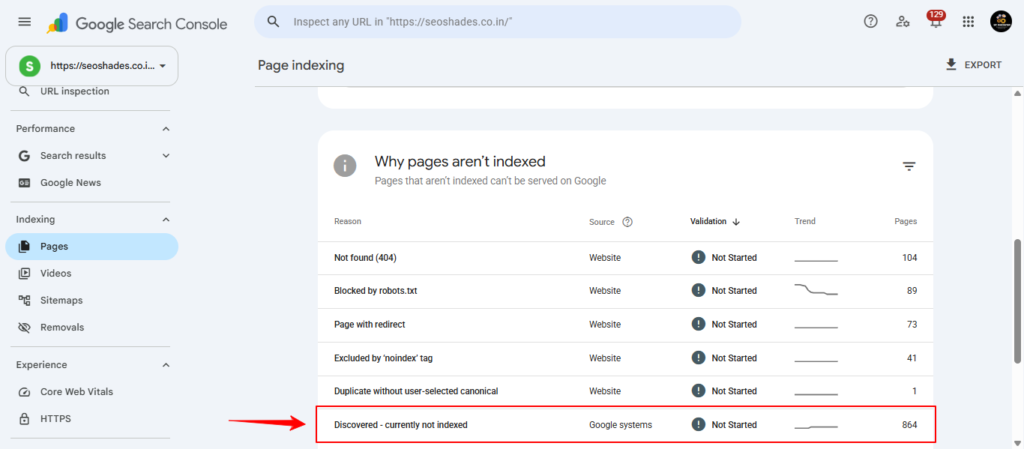
Before making any changes, find out exactly which URLs are affected.
Open Google Search Console for your website and navigate to the Pages report under Indexing. The interface and labels may vary slightly depending on the current version.
Find the Discovered – Currently Not Indexed status and open the report to review the affected URLs.
Don’t treat every URL as the same problem. Group them by their purpose and importance.
For example:
- Important service pages
- Important blog posts
- Product and category pages
- Filtered or parameter-based URLs
- Duplicate or low-value pages
This classification helps you understand whether the issue affects a small group of URLs or a significant part of your website.
Look for patterns across the affected URLs
Imagine your website has 500 URLs, and 20 low-priority blog pages are discovered but not indexed. That situation is very different from having 40 out of 50 important service pages in the same status.
In the first case, you may need to review the affected content and internal linking without making major sitewide changes.
In the second case, you should investigate your site’s architecture, crawling patterns, and technical setup more closely.
Once you’ve grouped the URLs, select a few representative pages and inspect them using Google Search Console’s URL Inspection tool.
Review the reported indexing status alongside the available live test results. A live test can help verify current accessibility and certain technical conditions, but it does not guarantee that Google will index the page.
The goal at this stage is to identify patterns before changing anything.
Related Post : How to Optimize Content for Google AI Overviews in 2026
Step 2: Check Whether Googlebot Can Access Your Pages
A page may be discoverable but still experience problems that make crawling difficult. Your next step is to check whether the website is accessible and responding consistently.
Start by opening the affected URL in your browser.
Ask yourself:
- Does the page load normally?
- Does it return a server error?
- Is it unusually slow?
- Does it occasionally return HTTP 500, 502, 503, or 504 errors?
- Does the problem affect one URL or multiple sections of the website?
A temporary server error does not automatically explain a discovered URL, but persistent availability problems are worth investigating.
This becomes particularly important for larger websites with thousands of URLs. If the server struggles to handle requests consistently, crawling activity may be affected.
Check server logs and hosting errors
If the problem persists, review your hosting error logs, server logs, and available crawl data.
Look for repeated failures, slow responses, or patterns affecting specific directories and URL types.
Where possible, examine verified Googlebot requests rather than assuming that every crawler-like request in your logs comes from Google.
This can help you distinguish a general server problem from an issue affecting only a particular group of pages.
Review your robots.txt file
Your robots.txt file is usually available at:
https://yourwebsite.com/robots.txtCheck whether any important directories or URL patterns are blocked from crawling.
For example, a rule that unintentionally disallows an important blog directory can prevent Googlebot from crawling the pages within that section.
However, there is an important technical distinction here: robots.txt controls crawling; it is not a reliable way to remove a URL from Google’s index.
Google may sometimes index a blocked URL without crawling its content if it discovers the URL elsewhere.
Don’t make random robots.txt changes just because you see the discovered status. First, identify which URLs are affected and understand what each rule is intended to do.
Your goal is to keep important pages crawlable while managing unnecessary crawling sensibly.
Step 3: Improve Internal Linking
Weak internal linking is one of the areas worth investigating when important pages remain discovered but not crawled.
Imagine you’ve published a detailed blog post and added its URL to your XML sitemap. However, no other relevant page on your website links to it.
If there is no path to that page through your website’s internal links, it may be an orphan page.
Google can discover an orphan page through a sitemap, but sitemap inclusion alone does not guarantee that Google will crawl or index it promptly.
Internal links help search engines understand your website’s structure. They also help visitors move between related pages and find information that answers their questions.
How to fix orphan pages
Let’s say your website already has a detailed article about SEO audits. You’ve now published a new post titled How to Fix Discovered but Not Indexed Pages.
Instead of leaving the new article isolated, add a contextual link to it from the existing SEO audit article where it genuinely helps the reader.
You can also link to the new post from relevant category pages, your SEO tools page, or other related articles.
The important point is relevance. Don’t add links to every page simply to increase the number of internal links.
A good internal linking structure should accomplish four things:
- Make important pages easier to discover.
- Connect related pages logically.
- Help users and search engines understand the website hierarchy.
- Keep important URLs accessible through meaningful navigation and contextual links.
Check orphan pages and crawl depth on larger websites
If your website contains hundreds or thousands of pages, a crawler such as Screaming Frog can help identify orphan pages and investigate crawl depth.
Crawl depth refers to how many clicks it takes to reach a page from a starting point, usually the homepage or another configured starting URL.
If important pages are buried several levels deep or receive no internal links, review whether the website structure makes them unnecessarily difficult to reach.
The principle is straightforward: if a page matters to your business and deserves to be indexed, make sure it has a logical place within your website.
Internal linking can improve discovery and crawling, but it does not guarantee indexing.
Step 4: Check Your XML Sitemap
Your XML sitemap helps Google discover the URLs you want it to consider for indexing. However, it should not contain every URL your website can generate.
Ideally, include the preferred, indexable URLs that you want to appear in Google’s search results.
Review each sitemap URL against the following checks:
- Correct URL: The URL should point to the intended page.
- HTTP status: The page should normally return a successful HTTP 200 response.
- Indexability: The page should not be unintentionally blocked from indexing.
- Canonical URL: The sitemap should contain the preferred canonical version.
- URL cleanliness: Avoid unnecessary redirected, broken, or parameter-based URLs that do not belong in the index.
Example of a correct sitemap URL
Suppose your preferred page is:
https://example.com/seo-auditIf this is the canonical, indexable version, include that URL rather than its HTTP, non-www, or redirected alternatives.
Consistent URLs make your site’s preferred versions clearer and reduce avoidable confusion.
If you’re using WordPress, you can review the XML sitemap generated by plugins such as Rank Math or Yoast SEO.
Check the sitemap output rather than assuming the plugin has configured everything correctly.
One misconception is worth clearing up: submitting a sitemap does not mean Google will index every URL in it.
A sitemap helps Google discover URLs. Google’s systems still decide when to crawl them and whether they should be indexed.
Repeatedly resubmitting the same sitemap is not a substitute for fixing underlying technical or structural problems.
Related Post : Backlinks Not Getting Indexed? Can You Save Your SEO Job?
Step 5: Review Content Quality and Duplicate Pages
Here’s an important distinction: if a page has not been crawled, you cannot confidently claim that its content quality is the confirmed reason for the discovered status.
However, reviewing content quality and duplication across your website is still useful. It helps you determine which pages genuinely deserve indexing and whether your website has unnecessary URL or content duplication.
Imagine you’ve published 100 blog posts, but 30 of them cover almost identical topics.
The titles may differ, but the content repeats the same information. Alternatively, you may have created several pages targeting the same keyword and search intent without giving users a meaningful reason to visit each one.
This is a sign that your content architecture needs a closer look.
Ask these questions about every affected page
Does the page answer a distinct user question?
A page should have a clear purpose. If it covers the same question in the same way as an existing article, consider whether a separate URL is necessary.
Does it provide original insights, examples, data, or useful instructions?
A page should contribute something meaningful rather than repeat information already available elsewhere on your website.
Does it unnecessarily repeat an existing page?
Review the content, target keyword, search intent, and purpose of similar URLs.
Does it provide meaningful value to the reader?
Think about whether someone visiting the page would gain useful information that helps them solve a problem or make a decision.
When should you merge similar pages?
If two pages target the same search intent and there is no strong reason to keep them separate, merging them into one more useful resource may make sense.
For example, if two blog posts explain the same SEO issue with nearly identical recommendations, you could consolidate their strongest information into one comprehensive article.
However, don’t merge every page simply because the topics sound similar.
Two pages can cover the same broad subject while serving different purposes. If their search intent and practical value genuinely differ, keeping them separate may be the better decision.
Also, don’t delete a useful, unique page simply because it has an indexing problem.
First, investigate the root cause. Then decide whether the page needs technical fixes, content improvements, consolidation, or no action at all.
The objective isn’t to force every URL into Google’s index. It’s to make sure the pages you want indexed are useful, accessible, and worth keeping.
Step 6: Understand Crawl Budget and Website Size
Crawl budget is another concept that often comes up when diagnosing indexing problems. But it needs to be applied in the right context.
For a small website with 20 or 50 useful pages, blaming crawl budget without supporting evidence usually isn’t the right starting point.
Crawl budget becomes more relevant when a website has a very large number of URLs, frequent content changes, server constraints, or URL patterns that generate many unnecessary variations.
How URL parameters create crawling problems
Consider an e-commerce website where users can filter products by colour, size, or price.
The website might generate URLs such as:
https://example.com/products/?color=blackhttps://example.com/products/?size=largehttps://example.com/products/?sort=priceEach variation may serve a purpose for users. However, when filters can be combined in numerous ways, the website may generate a huge number of URLs.
If many of these variations are unnecessary for search, Google may spend time discovering or crawling URLs that offer little additional value.
For a large website, this can make URL management and crawling efficiency important areas to investigate.
How to investigate unnecessary URLs
Start by reviewing:
- URL patterns and parameter combinations.
- Internal links that generate or expose filtered URLs.
- Crawl statistics in Google Search Console.
- Server logs showing Googlebot’s activity.
- Whether parameter-based pages provide distinct search value.
If certain URLs have no meaningful search purpose, you may need to control how they are generated, linked, or handled by search engines.
However, don’t blindly block every parameter URL. Some parameter-based pages may be useful, and the right handling depends on what each URL does.
Depending on the situation, you may need to retain crawlable URLs, use appropriate canonicalization, apply a noindex directive where suitable, or adjust internal linking and URL generation.
These methods are not interchangeable, so assess the purpose of each URL before choosing an approach.
Crawl budget is not a universal explanation for indexing problems. Investigate it when your website’s size, URL patterns, or crawling data give you a reason to do so.
Step 7: Check Canonical Tags and Noindex Directives
Canonical tags and robots meta directives are important checks when troubleshooting indexing eligibility.
They are not interchangeable, and an incorrect configuration can prevent your preferred page from being indexed as intended.
Verify the canonical tag
Suppose your preferred page is:
https://example.com/seo-servicesBut the page’s HTML contains a canonical tag pointing to a different URL.
Google may interpret that canonical as a signal that the other URL is the preferred version.
Canonical tags are signals rather than absolute commands, but conflicting or incorrect canonicalization can create problems.
Inspect the affected page and check the following:
- The canonical URL is correct.
- The canonical URL is accessible.
- It points to the version you actually want indexed.
- The canonicalization signals across your website are consistent.
For a page intended to be indexed independently, a self-referencing canonical is often appropriate, provided that the URL is genuinely the preferred version.
Don’t automatically change every canonical tag to point to itself. If a page is intentionally a duplicate of another URL, its canonical may need to point to that preferred page instead.
Related Post : How to Write Human-Written Content: A Complete Guide
Check for accidental noindex directives
Next, inspect the page’s HTML for a robots meta tag containing a noindex directive.
For example:
<meta name="robots" content="noindex">This tells search engines not to index the page. If the directive is unintended, remove or correct it and allow Google to recrawl the page.
Also check whether an applicable HTTP X-Robots-Tag header is sending a noindex directive.
If you want a page to appear in Google Search, confirm that it is eligible for indexing and that no unintended directive prevents it.
Robots.txt and noindex are not the same thing
A robots.txt rule controls whether Googlebot can crawl a URL. A noindex directive tells a search engine not to include the page in its index when the directive is successfully processed.
If you want Google to process a noindex directive, Googlebot must be able to crawl the page and access that directive.
Blocking the page in robots.txt can prevent Google from seeing the noindex instruction.
This is why you should review robots.txt, canonical tags, and robots directives together rather than treating them as separate, unrelated settings.
Step 8: Use URL Inspection and Request Indexing Correctly
By this point, you should have checked the main technical and structural factors.
The page is accessible. Internal links are in place. The canonical URL is correct. The content provides useful information. The sitemap contains the appropriate URL.
Now you can return to Google Search Console’s URL Inspection tool.
Inspect the affected URL and review the available information about its indexing status. If a live test is available, use it to check current accessibility and relevant technical conditions.
If the page is important, eligible for indexing, and you’ve corrected an actual issue, you can use the Request Indexing option.
But don’t treat that button as a guaranteed fix.
Requesting indexing does not force Google to crawl or index a page immediately. Google still uses its own crawling and indexing systems to decide what happens next.
If you’ve published 500 URLs at once, manually requesting indexing for every page is unlikely to be the most effective use of your time.
Focus first on improving your website’s architecture, making important pages accessible, and ensuring that the URLs you want indexed provide distinct value.
Prioritize the pages that matter most to your business, then monitor the results in Search Console.
A Real-World Troubleshooting Example
Let’s put everything together with a practical example.
Imagine your website has 200 blog posts, and Google Search Console reports that 60 URLs have the Discovered – Currently Not Indexed status.
What should you do?
Step 1: Export and categorize the URLs
Export the affected URLs and group them by page type.
Separate important articles from low-value pages, duplicate content, and parameter-based URLs.
This gives you a clearer picture of the problem before you start making changes.
Step 2: Prioritize the pages that matter
Determine which pages deserve to be indexed.
An important service page or a detailed article that supports your business goals deserves closer attention than an unnecessary URL generated by a filter.
Don’t assume that all 60 URLs require the same treatment.
Step 3: Inspect representative URLs
Use URL Inspection to review selected pages.
Check the reported status, current accessibility, robots.txt rules, canonical tags, sitemap inclusion, and server responses.
Look for patterns that affect multiple URLs rather than investigating every page as an isolated case.
Step 4: Review internal linking
Check whether important pages receive relevant internal links from existing articles, category pages, and other useful sections of the website.
If important pages are orphaned or unnecessarily difficult to reach, improve the linking structure.
Step 5: Evaluate content quality
Review whether the affected pages offer unique information and address distinct search intent.
If multiple pages repeat the same topic without adding value, consider consolidating them where appropriate.
Keep genuinely useful pages separate when they serve different purposes.
Step 6: Fix the identified issues
Implement the changes supported by your investigation.
These might include correcting canonical tags, removing unintended crawling restrictions, improving internal links, fixing server errors, cleaning up the sitemap, or managing unnecessary URL variations.
Avoid making unrelated sitewide changes simply because some pages are not indexed.
Step 7: Request indexing and monitor the results
Once the issues are fixed, request indexing for important, eligible URLs where appropriate.
Monitor Google Search Console over the following days and, if necessary, weeks. There is no fixed timeline for crawling or indexing.
If the issue persists, investigate crawl statistics, server logs, and URL patterns more closely.
The objective is not to force all 60 URLs into Google’s index. It’s to make important, useful, index-worthy pages easier for Google to discover, crawl, and process.
Common Mistakes to Avoid
When dealing with Discovered – Currently Not Indexed, it’s easy to spend time on actions that don’t solve the underlying problem.
Here are six mistakes worth avoiding.
1. Assuming every discovered URL must be indexed
Not every URL deserves a place in Google Search.
Duplicate pages, unnecessary parameter variations, and low-value URLs may not need to be indexed at all.
Before trying to fix an indexing issue, decide whether the page should be indexed in the first place.
2. Building backlinks to every affected page
Backlinks can help Google discover pages and may contribute to understanding their importance. However, building backlinks for every discovered URL is not a compulsory solution.
If an important page has weak internal linking, fixing the internal linking structure may be a more direct place to start.
Investigate the actual problem before investing in link building.
Related Post : 2000+ Social Bookmarking Sites: Best Platforms for SEO
3. Resubmitting the sitemap every day
Submitting the same sitemap repeatedly does not guarantee indexing.
Keep your sitemap accurate and make sure it contains the preferred, indexable URLs. Once that is done, focus on improving the factors that may be affecting crawling or indexing.
4. Editing robots.txt without checking the rules
A poorly planned robots.txt change can restrict Googlebot from crawling important pages.
Review the existing rules and understand their impact before making changes. Don’t block entire directories just to try to clear the discovered report.
5. Blaming content quality without diagnosing the issue
The discovered status means Google has not yet crawled the page according to the reported status.
Content quality is important when evaluating whether a page deserves indexing, but it isn’t a confirmed explanation for why that page hasn’t been crawled.
Investigate server accessibility, internal linking, URL patterns, and other crawling signals as well.
6. Panicking when a page isn’t indexed within a day or two
Google does not follow a fixed timeline for crawling and indexing every URL.
A delay of a day or two does not automatically mean something is broken. Look at the page’s importance, the broader URL patterns, and whether the problem persists.
Make changes based on evidence, not panic.
Discovered – Currently Not Indexed: Final Troubleshooting Checklist
Before finishing your investigation, use this checklist to make sure you’ve covered the important areas.
- Identify affected URLs in Google Search Console.
- Separate important pages from low-value, duplicate, and unnecessary URLs.
- Check server responses and Googlebot accessibility.
- Review robots.txt for unintended crawling restrictions.
- Add relevant internal links to important pages.
- Keep the XML sitemap clean and consistent.
- Verify canonical tags and noindex directives.
- Evaluate content duplication and the usefulness of each page.
- Investigate crawl statistics, server logs, and URL patterns on larger websites.
- Request indexing for important, eligible URLs after fixing the identified issues.
- Monitor the indexing report and investigate persistent problems.
Work through the checklist systematically. You don’t need to implement every possible fix on every website. You need to identify the factors relevant to your affected URLs and address those first.
Related Post : 1100+ Free Profile Creation Sites for SEO in 2026
Final Thoughts
The solution to Discovered – Currently Not Indexed isn’t simply clicking the Request Indexing button and hoping for the best.
You need to understand why Google has discovered a URL but hasn’t crawled it yet, and whether that URL is worth indexing in the first place.
Sometimes the issue is weak internal linking. Sometimes it involves server accessibility or URL structure. On larger websites, unnecessary parameter-based URLs may also contribute to crawling inefficiencies.
The important thing is to identify the root cause, make the changes that address it, and monitor the results.
Don’t waste time trying to force every URL into Google’s index. Focus on the pages that provide real value to users and support your website’s goals.
If you’re working on technical SEO, website audits, or Google Search Console issues, keep testing your assumptions and making decisions based on what the data actually shows.
Have a question about the Discovered – Currently Not Indexed status? Share how many URLs are affected on your website and what you’ve already checked in the comments.
Keep learning and keep optimizing.
FAQs: Discovered – Currently Not Indexed
1. What does Discovered – Currently Not Indexed mean in Google Search Console?
Discovered – Currently Not Indexed means Google knows your URL exists but has not crawled it yet, according to the reported indexing status. This can happen due to crawling priorities, weak internal linking, server issues, or unnecessary URL variations.
2. How do I fix Discovered – Currently Not Indexed?
Start by checking the affected URLs in Google Search Console. Review server accessibility, robots.txt, internal links, XML sitemaps, canonical tags, and URL structure. Fix any identified issues before requesting indexing for important pages.
3. How long does Google take to index a discovered page?
There is no fixed timeline for Google to crawl and index a discovered page. It may take days or longer, depending on the website and URL. Requesting indexing does not guarantee immediate inclusion in Google’s search index.
4. Does Discovered – Currently Not Indexed mean my website has a Google penalty?
No. This status alone does not indicate a Google penalty. It means Google has discovered the URL but has not yet crawled it according to the reported status. Investigate persistent issues, especially when important pages are affected.
5. Does submitting an XML sitemap fix Discovered – Currently Not Indexed?
Submitting an XML sitemap helps Google discover your URLs, but it does not guarantee crawling or indexing. Keep your sitemap updated with preferred, indexable URLs and support important pages with relevant internal links.





Comments
No comments yet. Be the first to share your thoughts or ask a question.