Google Crawling vs Indexing: Why Your Pages Aren’t Appearing in Search

Written by Shivam Panchal
Founder & SEO Consultant, SEO Shades
You published a new blog on your website. You researched the keywords, optimized the title and meta description, and added internal links.
But when you search for your target keyword on Google, your page is nowhere to be found.
Naturally, you start wondering whether your content is good enough, the keyword competition is too high, or Google simply doesn’t want to rank your website.
But hold on. What if ranking isn’t the actual problem?
Google might not have crawled your page yet. Or perhaps Google has already crawled it but hasn’t added it to its search index.
These are two different situations, and the solution depends on which one you’re dealing with.
In this guide, we’ll look at the difference between Google crawling and indexing, why Google sometimes refuses to index a page even after crawling it, how to identify these issues in Google Search Console, and what you can do to fix them.
I’ll also walk you through a practical troubleshooting process you can use on your own website to find out where the problem actually lies.
What Is the Difference Between Google Crawling and Indexing?
Before troubleshooting anything, you need to understand how Google discovers, processes, and displays web pages.
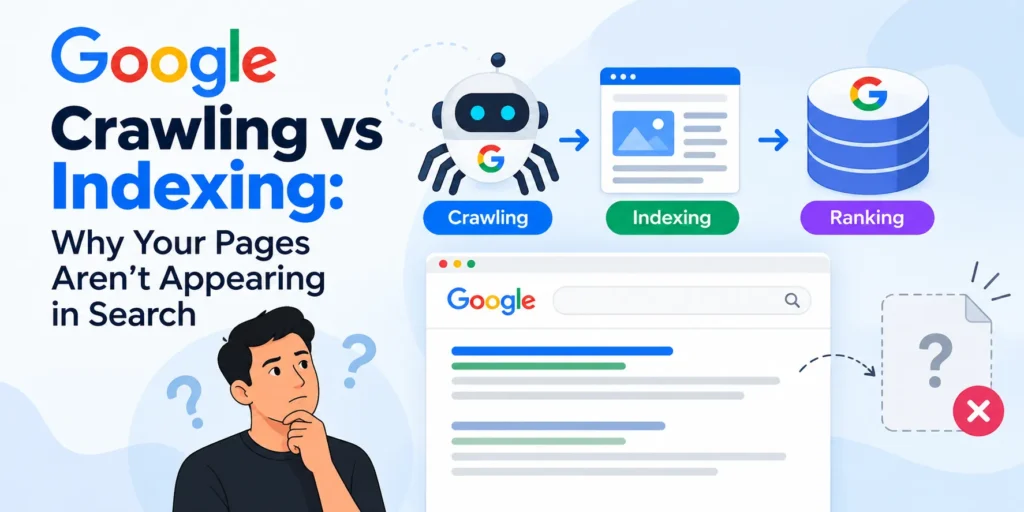
A page doesn’t automatically appear in Google search results just because you publish it. Google needs to discover the URL, access the page, process its content, and decide whether to include it in its search index.
The process can be divided into three main stages:
- Crawling: Google discovers and accesses a page.
- Indexing: Google processes the page and decides whether to include it in its search index.
- Ranking: Google determines which indexed pages are relevant to a search query and how they should appear in the results.
Let’s understand this with a simple example.
Suppose you publish a new blog on your website about Technical SEO Audits.
First, Google needs to discover the URL. When Googlebot visits the page and accesses its content, links, and other relevant information, this is crawling.
Next, Google processes the page and evaluates whether it should be included in its index. This is indexing.
Finally, when someone searches for Technical SEO Audit, Google selects relevant pages from its index and determines their order in the search results. This is ranking.
Here’s the important part: a page being crawled doesn’t mean it will be indexed, and a page being indexed doesn’t mean it will rank on the first page of Google.
These are separate processes. Each can have different problems, so you need to diagnose them separately.
What Is Google Crawling?
Google crawling is the process through which Google discovers and accesses web pages using automated programs called crawlers. Google’s primary web crawler is known as Googlebot.
Google can discover a URL in several ways:
- Through internal links from other pages on your website.
- Through an XML sitemap that lists your website’s URLs.
- Through links from external websites or other sources.
- Through URLs Google has discovered previously.
For example, imagine your website already has 100 blog posts, and you publish your 101st article today.
Publishing the article doesn’t guarantee that Google will crawl it immediately. Google first needs to discover the URL and then decide when to crawl it.
Two things matter here.
First, Google needs to know that the page exists.
Second, Googlebot must be able to access the page without significant technical restrictions.
Related Post : How to Optimize Content for Google AI Overviews in 2026
What Can Prevent Google From Crawling a Page?
Several technical issues can interfere with crawling.
1. Robots.txt restrictions
If your robots.txt file blocks an important directory, Googlebot may be prevented from crawling URLs within that directory.
2. Server errors
If your server repeatedly returns errors such as 500 Internal Server Error, 502 Bad Gateway, or 503 Service Unavailable, Googlebot may struggle to access your pages consistently.
3. Weak internal linking
If a page has no internal links pointing to it, Google may have fewer ways to discover it. An XML sitemap can help Google find the URL, but it doesn’t guarantee crawling.
4. URL complexity
Websites with thousands of unnecessary URL variations, tracking parameters, duplicate pages, or filter combinations can make crawling more complicated.
5. Limited crawling demand
Google doesn’t necessarily crawl every URL as soon as it discovers it. It considers factors such as the site’s technical condition, the value of its pages, and whether crawling the URL appears worthwhile.
One thing to remember: not every crawling problem is caused by robots.txt. Sometimes Google hasn’t discovered the URL, sometimes the server is causing problems, and sometimes Google simply hasn’t crawled the page yet.
Don’t change your robots.txt file without first identifying the actual issue.
What Is Google Indexing?
Google indexing happens when Google processes information about a page and decides whether to include it in its search index.
During this process, Google may analyze the page’s text, title, images, canonical URL, and other relevant signals.
Think of crawling as accessing the page and indexing as deciding whether that page should become part of Google’s searchable collection.
For example, Google may crawl one of your blog posts but decide not to index it because:
- The page contains very little useful information.
- Its content substantially duplicates another page.
- Another URL appears to be the preferred canonical version.
- The page contains a noindex directive.
- Google doesn’t consider the page sufficiently valuable to include in its index at that time.
In some cases, Google may index a different URL instead of the one you intended.
This doesn’t necessarily mean Google couldn’t access your page. It may have accessed the content but decided not to index that particular URL separately.
Does Indexing Guarantee Rankings?
No.
A page can be indexed and still fail to appear prominently for your target keyword.
Perhaps the content doesn’t match the search intent closely enough. Maybe the competition is stronger, the page provides less useful information, or other pages are more relevant to the query.
If your page is indexed but isn’t ranking, investigate content quality, search intent, relevance, competition, and other ranking factors.
If the page isn’t indexed at all, start by diagnosing the indexing problem.
Treating these two situations as the same problem can lead you to make changes that don’t address the real issue.
Discovered, Crawled, and Indexed: What’s the Difference?
When you open Google Search Console, you’ll encounter different statuses related to page indexing. Three concepts are especially important: discovered, crawled, and indexed.
1. Discovered
Google knows that the URL exists, but it hasn’t crawled the page yet.
For example, you publish a new blog and include its URL in your XML sitemap. Google discovers the URL but hasn’t visited it.
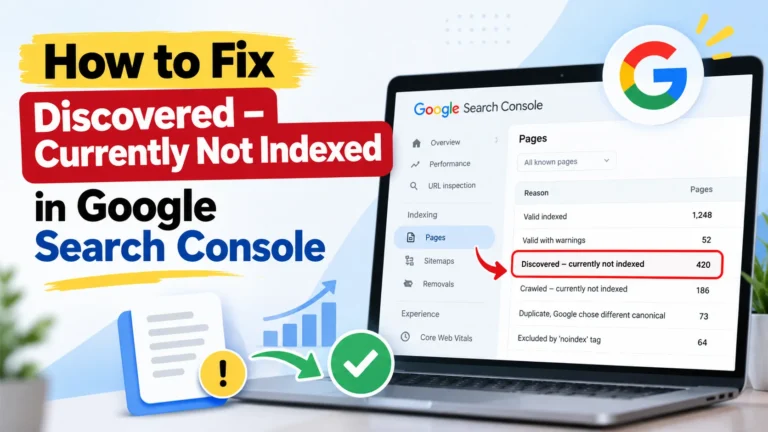
You may see the status Discovered – currently not indexed.
This doesn’t automatically mean your content is poor. It means Google has discovered the URL but hasn’t crawled it yet.
2. Crawled
Googlebot has accessed the page, but Google hasn’t necessarily added it to the index.
If Google crawls your blog, processes the page, and decides not to index it, Search Console may show Crawled – currently not indexed.
In this situation, you need to investigate why the page hasn’t been indexed rather than assuming Google cannot access it.
3. Indexed
Google has included the URL in its search index.
However, this doesn’t guarantee that the page will appear for every keyword you target or achieve a particular ranking.
Also, Search Console statuses can differ depending on the report and the URL’s current state. Don’t draw conclusions from one status alone. Inspect the URL and understand the underlying reason before making changes.
Related Post : What Is a Reciprocal Link in SEO? Is Link Exchange Safe or Risky?
Why Is Google Not Crawling Your Pages?
If your pages aren’t being crawled, start with the following potential causes.
1. Google Hasn’t Discovered the Page
Imagine you publish a new blog, but no other page on your website links to it. The article isn’t linked from a category page, and its URL isn’t included in your sitemap.
Google may take longer to discover the page.
Start by checking your XML sitemap. Confirm that the new URL is included in the correct sitemap.
Next, add relevant internal links from existing articles, category pages, or other related pages.
For example, if you’ve published a guide about Technical SEO Audits, you could link to it from relevant articles about crawling issues, indexing problems, or technical SEO.
But don’t stop at adding links. Make sure the pages containing those links are themselves accessible to Google.
A sitemap and internal links help Google discover URLs, but neither guarantees that every page will be crawled immediately.
2. Robots.txt Is Blocking the URL
Your robots.txt file may contain a directive that prevents Googlebot from crawling an important part of your website.
For example, if you’ve accidentally blocked your blog directory, Googlebot may be unable to crawl the articles inside it.
Open your robots.txt file and review the paths being blocked. Check whether any important pages or directories are affected.
However, there’s an important distinction here.
Blocking a URL in robots.txt doesn’t guarantee that the URL will never appear in Google search results. If Google discovers the URL through other sources, it may sometimes show the URL without having crawled its content.
If your goal is to prevent a page from appearing in search results, robots.txt alone is not always the right solution.
A noindex directive may be appropriate, but Googlebot must be allowed to crawl the page to see that directive.
The correct solution depends on what you’re trying to achieve: controlling crawling or preventing indexing.
3. Your Server Is Returning Errors
Sometimes Googlebot tries to access a page, but your server doesn’t return a successful response.
Common examples include:
- 500 Internal Server Error
- 502 Bad Gateway
- 503 Service Unavailable
If these errors occur repeatedly, they can interfere with crawling.
In this situation, repeatedly clicking Request Indexing in Google Search Console won’t fix the underlying problem.
You need to resolve the server issue first.
Check your hosting logs, server error logs, and website uptime. If you’re using WordPress, review whether a plugin, security rule, or caching configuration is interfering with requests.
Also, understand that a 503 error can be intentional during maintenance. The concern is when the server remains unavailable for too long or repeatedly fails to serve pages.
4. Internal Linking Is Weak
Suppose your website has 500 blog posts, but 100 of them don’t receive any internal links from other pages.
These are known as orphan pages.
An orphan page isn’t connected to your website’s normal internal linking structure. Although Google may discover it through a sitemap or external links, the lack of internal links can make discovery and crawling more difficult.
This is why internal linking deserves regular attention.
Identify important pages that have no internal links pointing to them. Then connect them to relevant articles, category pages, or other useful sections of your website.
Don’t link every article to random pages simply to increase the number of internal links.
An internal link should make sense in context and help the reader find related information.
Related Post : How to Write Human-Written Content: A Complete Guide
5. Your Website Has Too Many Unnecessary URLs
Large websites can generate thousands of URLs through tracking parameters, sorting options, filters, and other variations.
For example, a category page might generate multiple URLs that display essentially the same products but use different sorting parameters.
When this happens at scale, Google may encounter many URLs that offer little additional value.
Review your URL structure and identify which URLs are genuinely useful, which are duplicates, and which don’t need to be crawled.
However, don’t assume that every large website has a crawl budget problem.
For smaller websites, start with the basics: internal links, sitemap quality, HTTP response codes, and robots.txt. Crawl budget management becomes more relevant when a website’s size and URL generation patterns make crawling efficiency a meaningful concern.
Why Is Google Crawling Your Page but Not Indexing It?
Now let’s consider a different situation.
Googlebot can access your page. Google has already crawled the URL, but Search Console reports Crawled – currently not indexed.
At this point, you need to investigate indexing-related issues.
1. Your Content Doesn’t Provide Enough Useful Information
One common mistake is writing content around keywords without fully answering the reader’s question.
Someone performs keyword research, selects a target keyword, and writes a 500- or 700-word article. The keyword appears in the title, introduction, headings, and conclusion.
But when someone reads the article, they still don’t get a complete answer.
Consider a blog targeting the keyword How to Fix Crawled, Currently Not Indexed.
If the article only says to improve content, add internal links, and submit a sitemap, it hasn’t provided much practical help.
The reader still needs to know:
- How to identify the actual cause in Google Search Console.
- Which technical checks to perform.
- When to improve content and when to investigate canonical tags.
- How to determine whether the issue has been resolved.
The keyword may be present throughout the article, but the information the reader needs is missing.
This is why I wouldn’t focus only on word count when creating content.
Instead, ask yourself what the user wants to know and whether your page provides a clear, useful, and accurate answer.
At the same time, short content isn’t automatically bad content. If you can answer a question accurately in 400 words, there’s no reason to stretch it to 2,000 words just to make the article longer.
The objective is to satisfy the reader’s needs, not hit an arbitrary word count.
2. Your Website Has Duplicate Content
Imagine your website has three articles:
- What Is Technical SEO?
- Technical SEO Explained for Beginners
- Technical SEO Guide for Beginners
If all three articles provide nearly identical information and target the same search intent, Google may have little reason to index each one separately.
Start by reviewing your content strategy.
Do all three articles serve a distinct purpose? Does each one answer a different question? Do they contain different examples, insights, or practical information?
If two pages target the same intent and offer substantially the same information, merging them into one stronger article may be the better option.
However, similar keywords don’t automatically mean two pages are duplicates.
Two keywords may look similar but represent different search intents. In that case, separate pages may be appropriate.
Don’t merge pages based on keyword similarity alone. Review the actual content and what users expect to find when searching for each query.
3. Your Canonical Tag Is Incorrect
Canonical tags are an important part of technical SEO.
A canonical tag tells search engines which URL you consider the preferred version when multiple URLs contain identical or substantially similar content.
For example, imagine these two URLs:
- example.com/technical-seo
- example.com/technical-seo?source=email
If both URLs display the same content, you may use a canonical tag to indicate the preferred URL.
But suppose you accidentally add a canonical tag to a different article.
Google may interpret that canonical signal as an indication that the other URL is the preferred version. As a result, your original page might not be indexed separately.
This is why you should check the canonical tags on your important pages.
Confirm that each canonical points to the intended URL.
Also, remember that a canonical tag is a signal, not an absolute instruction. Google considers canonical tags alongside other signals and may select a different canonical URL.
In Google Search Console’s URL Inspection tool, compare the user-declared canonical with the Google-selected canonical.
If the URLs differ, investigate why Google prefers another version.
Related Post : How to Start SEO for a Website: A Step-by-Step Guide for Beginners
4. A Noindex Tag Is Preventing Indexing
Sometimes, a page contains a noindex directive by mistake.
For example, you might add noindex to a page while developing your website because you don’t want search engines to index it yet.
Later, you publish the website but forget to remove the directive.
When Google crawls the page, it finds the noindex instruction and excludes the page from its index.
If you want that page to appear in search results, remove the unintended directive and allow Google to crawl and process the page again.
On WordPress websites, this issue can occur because of SEO plugin settings or page-level indexing options.
If you’re using Yoast SEO, Rank Math, or another SEO plugin, check the indexing settings for the affected page.
Also inspect the page’s HTML for a meta robots noindex directive and check whether an X-Robots-Tag HTTP response header is sending a noindex instruction.
One thing to remember: noindex isn’t always a mistake.
If you intentionally don’t want a page indexed, you don’t need to remove it. First decide whether the page should appear in Google at all.
5. Google Has Selected a Different Canonical URL
Your website may contain two or more URLs with very similar content.
You want URL A to be indexed, but Google considers URL B the more appropriate canonical version.
In this situation, Google may index URL B instead of treating URL A as a separate page.
Open URL Inspection and check the Google-selected canonical.
If Google has selected the wrong URL from your perspective, review the following:
- Canonical tags.
- Duplicate URLs.
- Internal links pointing to different versions of the page.
- Redirects between URLs.
- URLs included in your XML sitemap.
Try to make these signals consistent.
For example, if URL A is your preferred version, your internal links, canonical tag, sitemap, and redirects should support that choice wherever applicable.
You cannot force Google to select a particular canonical URL. You can provide consistent signals, but Google makes the final decision.
6. Your Page Is Too Thin or Repetitive
Consider a website that creates 50 location pages.
The city name changes on each page, but the rest of the content remains almost identical.
Or imagine publishing 100 blog posts where only the target keyword changes while the information provided to users stays practically the same.
These pages may offer very little distinct value.
Creating a separate URL for every keyword isn’t necessarily a good content strategy. Each page should have a clear purpose and provide information that justifies its existence.
If a page contains little useful information and substantially duplicates other pages, consider improving it, merging it with a relevant page, or removing it if it serves no purpose.
But don’t delete pages simply to reduce your indexed URL count.
Evaluate each page based on its purpose, traffic, backlinks, internal links, and business value before deciding what to do with it.
How to Identify Indexing Problems in Google Search Console
Understanding crawling and indexing is useful, but the real work begins when you need to identify the cause of a specific problem.
Google Search Console is the first place I would look.
Step 1: Open the Pages Report
Open the correct website property in Google Search Console.
Navigate to the Indexing section and open the Pages report.
Here, you’ll find information about URLs Google has indexed and URLs that aren’t currently indexed, along with the reported reasons for exclusion.
Depending on your website and its current status, you may encounter reasons such as:
- Discovered – currently not indexed.
- Crawled – currently not indexed.
- Blocked by robots.txt.
- Excluded by noindex tag.
- Duplicate, Google chose different canonical than user.
- Other indexing and exclusion statuses.
Each status describes a different situation. Don’t treat all of them as the same problem.
Step 2: Understand What the Report Is Telling You
If a page is marked Discovered – currently not indexed, Google knows about the URL but hasn’t crawled it yet.
Check internal links, sitemap inclusion, server accessibility, and whether the URL is worth crawling.
If the status is Crawled – currently not indexed, Google has accessed the URL but hasn’t indexed it.
Review the content’s usefulness, duplication, canonical signals, noindex directives, and other factors that may affect indexability.
If the page is Blocked by robots.txt, determine whether the restriction is intentional.
If it is Excluded by noindex tag, decide whether the page should be indexed. If it should, remove the unintended noindex directive.
If the report shows Duplicate, Google chose different canonical than user, compare your declared canonical with Google’s selected version and investigate inconsistent signals.
The key is to understand the reported reason before making changes.
Also, remember that Search Console reports don’t always update immediately. After fixing an issue, you may continue to see the previous status for some time.
How to Use the URL Inspection Tool
The URL Inspection tool helps you investigate an individual page rather than relying only on the overall Pages report.
Suppose one of your blog posts isn’t appearing in Google.
Copy its URL and paste it into the URL Inspection field at the top of Google Search Console.
Google will display the available indexing information for that URL.
Depending on its current state, you can inspect whether the page is indexed, review information about Google’s last crawl, and compare the user-declared and Google-selected canonical URLs.
If the page isn’t indexed, read the information carefully before deciding what to fix.
Use Test Live URL to Check the Current Page
If you want to check the page’s current technical accessibility, select Test Live URL.
This test can help you determine whether Google can currently access the page and whether certain technical problems are present.
You can also examine the rendered page and available HTML information to see whether important content is accessible.
However, passing the Live Test doesn’t guarantee indexing.
The test helps assess the page’s current accessibility and technical conditions. Google’s decision to include the page in its index is a separate process.
Related Post : 1100+ Free Profile Creation Sites for SEO in 2026
When Should You Request Indexing?
After fixing the problem and confirming that the page is ready to be indexed, you can use Request Indexing.
This asks Google to consider crawling the URL again.
But don’t expect the page to appear in search results immediately. Google may need time to recrawl and process the page, and submitting a request doesn’t guarantee indexing.
If the underlying problem still exists, repeatedly submitting the same request is unlikely to help.
Fix the issue first. Then request indexing if appropriate.
How XML Sitemaps and Internal Linking Help Google
Two things that often get overlooked during SEO work are XML sitemaps and internal linking.
Both can help Google discover your pages, but neither guarantees that Google will index them.
Keep Your XML Sitemap Clean
An XML sitemap helps Google discover the URLs you want it to know about.
Make sure your sitemap contains URLs that you actually want indexed.
Ideally, the listed URLs should:
- Return an appropriate successful HTTP response.
- Be accessible to search engines.
- Be intended for indexing.
- Represent the preferred URL version rather than an unnecessary duplicate.
For example, if your sitemap contains URLs that return 404 errors, redirect to other pages, or contain noindex directives, review and clean up the sitemap.
Submitting a URL in a sitemap doesn’t guarantee that Google will crawl or index it. The sitemap is a discovery signal, not an indexing instruction.
Build Useful Internal Links
Now imagine you’ve published a guide about Technical SEO Audits.
Your website also contains articles about crawling issues, indexing problems, and Google Search Console.
You can link to the audit guide from those related articles wherever the link genuinely helps the reader.
This makes it easier for users to navigate your website and helps Google understand the relationships between your pages.
Pay attention to important pages that are buried too deeply in your website structure or receive very few internal links.
For an SEO website, useful internal linking can connect beginner guides, technical troubleshooting articles, and more detailed resources into a clear content structure.
You don’t need to stuff keywords into every anchor text. Use descriptive, natural anchor text that tells readers what they’ll find on the other page.
The goal is to create meaningful connections between relevant pages, not simply increase the number of internal links.
Crawling and Indexing Problems on JavaScript Websites
If your website relies heavily on JavaScript, you need to check one additional thing: whether Google can access and render the actual page content.
Some websites load their main content through JavaScript rather than including everything in the initial HTML response.
Imagine that your blog looks perfectly fine when you open it in a browser.
However, the main content is missing from the HTML Google receives, or the JavaScript required to display that content isn’t rendering correctly.
Google may then struggle to understand the complete page.
How to Check JavaScript Rendering
Open the affected URL in Google Search Console and run the Live Test.
Inspect the available rendered page and HTML information.
Check whether the following elements are accessible:
- The main heading.
- The article’s body content.
- Important internal links.
- Other essential page elements.
If important content is missing, work with your developer to investigate rendering problems, blocked resources, and JavaScript errors.
That said, using JavaScript doesn’t automatically create an SEO problem.
The issue is whether Google can access and render the content it needs to understand the page.
Do You Need to Request Indexing After Publishing Every Blog?
This is a common question, especially for website owners who check Google Search Console after every new publication.
The answer is no. You don’t need to submit a manual indexing request for every new page.
If your internal linking structure is healthy, your sitemap is updated, and Google regularly crawls your website, it can discover new pages over time.
Request Indexing can be useful when you’ve published an important new page or made substantial changes to an existing page and want to ask Google to crawl it again.
But repeatedly clicking the button doesn’t guarantee faster indexing.
If the page has technical problems, contains little useful information, or isn’t suitable for indexing, the request won’t solve the underlying issue.
Focus on making the page accessible, useful, and technically sound before asking Google to recrawl it.
A Practical Technical SEO Checklist for Pages That Aren’t Indexed
Whenever a page doesn’t appear in Google, follow this checklist in order.
1. Check the Indexing Status
Open Google Search Console and review the URL’s current indexing status. Identify the reported reason before making changes.
2. Inspect the URL
Use the URL Inspection tool to understand what Google knows about the page and review the available crawl and canonical information.
3. Check the HTTP Status Code
Confirm that the page returns the expected HTTP response.
A normal, indexable page should generally return a 200 OK response. If it returns a 404, server error, or unexpected redirect, investigate the cause.
4. Review Robots.txt
Check whether robots.txt accidentally blocks the URL or an important directory containing it.
5. Check for Noindex Directives
Inspect the meta robots tag and the X-Robots-Tag response header.
If the page should be indexed, remove any unintended noindex directive.
6. Verify the Canonical URL
Check whether the canonical tag points to the intended URL.
Compare the user-declared canonical with Google’s selected canonical in URL Inspection.
7. Review the XML Sitemap
Confirm that the URL is included in the correct sitemap if it is intended for indexing.
Also check whether the sitemap contains unnecessary redirects, error URLs, or pages that shouldn’t be indexed.
8. Check Internal Links
Make sure relevant pages link to the URL naturally.
Look for orphan pages and important articles that receive very few internal links.
9. Evaluate Content Quality
Read the page from the user’s perspective.
Does it answer the search query? Does it provide useful information, practical examples, or insights? Is it substantially different from other pages on your website?
10. Check JavaScript Rendering
If your website relies on JavaScript, verify that Google can access the main content and important links.
11. Investigate Server and Access Problems
If Googlebot is encountering server errors or access restrictions, fix those problems before requesting another crawl.
12. Test the Page and Request Indexing if Necessary
After making the required changes, run the Live Test in URL Inspection.
If the page is ready to be indexed, use Request Indexing when appropriate.
Following this process helps you identify the actual problem instead of changing content unnecessarily or repeatedly requesting indexing without a clear reason.
A Realistic SEO Example: Fixing a Crawled, Currently Not Indexed Page
Let’s put everything together with a practical example.
Suppose you run an SEO agency website and publish a new article titled How to Fix Crawled, Currently Not Indexed Pages.
Two days later, you open Google Search Console and discover that the URL hasn’t been indexed.
You have two choices.
The first option is to add another 1,000 words, change the title, and repeatedly click Request Indexing in the hope that Google will eventually index the page.
The second option is to investigate the issue before making changes.
You open URL Inspection and confirm that Google has already crawled the page but hasn’t indexed it.
Next, you review the article.
You notice that it contains only general advice, offers no practical troubleshooting steps, and covers a topic already addressed by two other articles on your website.
You inspect those existing articles and find that one is designed for beginners, while the other focuses on practical Google Search Console solutions.
Now you need to decide whether the new article serves a genuinely different search intent.
If it provides distinct, useful information, improve it by adding the missing explanations and practical steps.
If it simply repeats an existing article, merging it into the more relevant page may be a better option.
After making that decision, review the canonical tags, internal links, and XML sitemap. Fix any technical issues you find.
Once the page is in the right condition, request indexing if necessary.
This is the approach I would follow before blaming Google for not indexing a page.
Don’t start by guessing what Google wants. First understand what Google has done with your URL, then investigate why the page hasn’t been indexed.
5 Common Mistakes to Avoid When Troubleshooting Crawling and Indexing
Before wrapping up, let’s look at five mistakes that can waste time during technical SEO troubleshooting.
Mistake 1: Treating Crawling and Indexing as the Same Thing
If Google has crawled a page, that doesn’t mean it has indexed it.
Check the actual status before deciding what needs to be fixed.
Mistake 2: Assuming Every Indexing Problem Is a Content Problem
Content quality matters, but it isn’t the only possible cause.
Robots.txt restrictions, incorrect canonical tags, noindex directives, server errors, and weak internal linking can also contribute to the problem.
Investigate the technical side before rewriting the article.
Mistake 3: Repeatedly Requesting Indexing
Request Indexing isn’t a shortcut that guarantees inclusion in Google’s index.
If the underlying issue remains unresolved, repeatedly submitting the URL won’t address it.
Mistake 4: Adding Every URL to the Sitemap
Your sitemap shouldn’t be a collection of every URL your website can generate.
Prioritize the URLs you want indexed, and make sure they’re technically accessible and represent the appropriate page versions.
Mistake 5: Confusing Indexing With Ranking
A page can be indexed without achieving a good position for its target keyword.
Once indexing is confirmed, focus on relevance, content quality, search intent, internal linking, and competition.
The next step depends on the actual problem. Don’t keep troubleshooting indexing when the real issue is ranking.
Final Thoughts
Google crawling and indexing are two different processes, and understanding that difference makes technical SEO troubleshooting much easier.
If Google isn’t crawling your page, investigate URL discovery, internal linking, robots.txt, server accessibility, and your website’s URL structure.
If Google has crawled the page but hasn’t indexed it, examine content usefulness, duplication, canonical signals, noindex directives, and other potential indexing issues.
Google Search Console gives you useful information about what is happening, while URL Inspection helps you investigate individual pages.
The most important thing to remember is simple:
First, find out what Google is doing with your page. Then fix the problem based on what the evidence tells you.
You don’t need to rewrite your content every time a page isn’t indexed. You don’t need to resubmit your sitemap every time you publish a blog. And you don’t need to click Request Indexing repeatedly.
Good SEO means making decisions based on data and technical checks instead of assumptions.
At SEO Shades, I focus on practical SEO techniques that you can apply to your own website.
If you found this guide useful, explore more of our technical SEO resources and use the troubleshooting steps above the next time one of your pages fails to appear in Google.
Over to you: Which issue do you encounter more often in Google Search Console: Discovered – currently not indexed or Crawled – currently not indexed?
Share your experience in the comments. Understanding the specific status is the first step toward finding the right solution.





Comments
No comments yet. Be the first to share your thoughts or ask a question.