
Does Google Index Only HTML Pages? Google Supported File Types Explained for SEO

Written by Shivam Panchal
Founder & SEO Consultant, SEO Shades
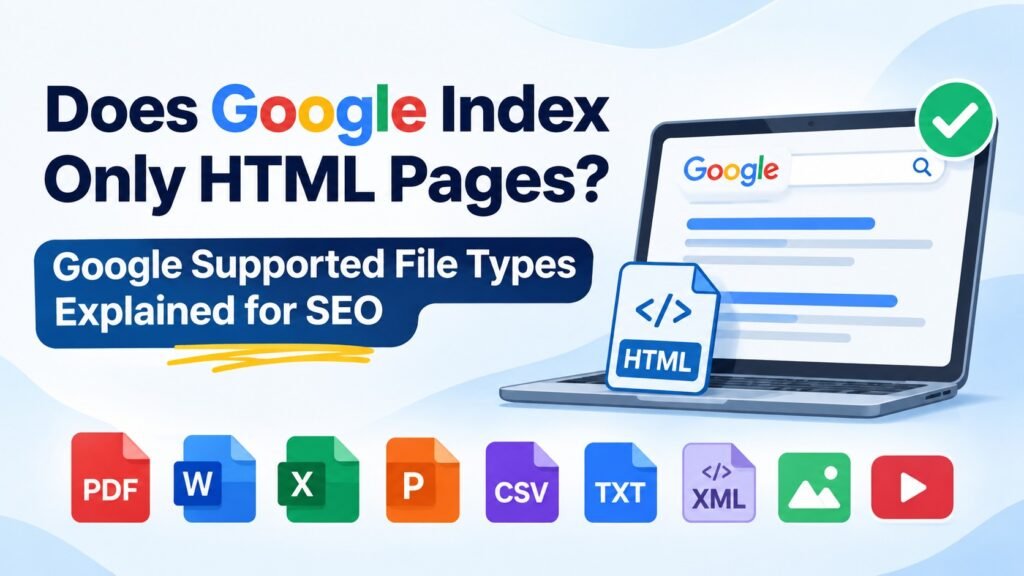
When we talk about Google indexing, most SEO professionals think about HTML webpages. Blog posts, landing pages, category pages, product pages, and other website URLs usually get most of our attention.
But does Google index only HTML pages?
What happens when you upload a PDF document, Excel spreadsheet, Word file, image, or video to your website? Can Google crawl these files, understand their content, and display them in search results?
The answer is yes.
Google can process and index several file formats beyond HTML. In fact, its supported file types include different text-based files, encoded documents, images, and videos.
However, there’s an important distinction to understand: a file format being supported by Google doesn’t guarantee that Google will index it.
In this guide, I’ll explain Google’s supported file types, how Google identifies different file formats, the role of HTTP Content-Type headers, and how you can use this knowledge in practical Technical SEO audits.
Let’s break it down.
What Is File Indexing in Google?
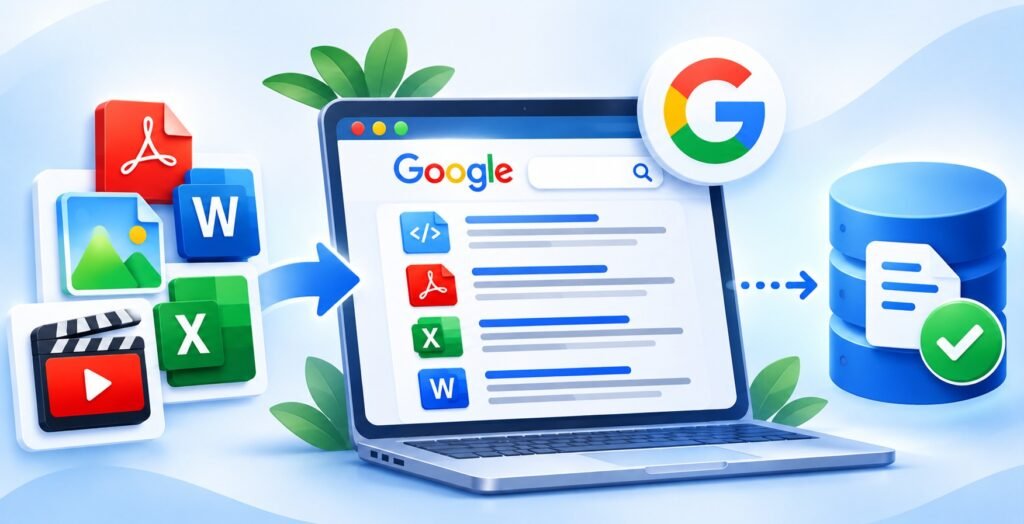
Before looking at the supported file formats, let’s understand what file indexing actually means.
Normally, when we work on SEO, we focus on HTML webpages.
For example:
- Homepage
- Blog posts
- Category pages
- Product pages
- Landing pages
Googlebot crawls these URLs, processes their content, and may include eligible pages in Google’s search index.
But Google isn’t limited to HTML documents.
Suppose you run an education website and publish a PDF document containing important information about NEET preparation.
If Google can successfully crawl and process that PDF, its content may also appear in Google Search results.
This means an indexed URL doesn’t necessarily have to be an HTML webpage. It could be a PDF, DOCX, XLSX, or another supported file format.
Here’s something worth remembering:
Supported file format does not mean guaranteed indexing.
Whether Google indexes a particular file depends on several factors, including:
- Whether Googlebot can access and crawl the file.
- Whether the server returns an appropriate HTTP response.
- Whether the content is useful and accessible.
- Whether the file contains duplicate content.
- Whether the URL is eligible for indexing.
- Whether Google can successfully process the file.
Understanding these factors is important when working on Technical SEO, especially for websites that publish a large number of downloadable resources.
Related Post : Is SEO Dead After Google AI Overviews? How to Optimize Your Website
Google Supported File Types: Complete Categories Explained

Google supports several file formats that can be divided into three major categories:
- Flat file types
- Encoded file types
- Image and video formats
Let’s understand each category with practical examples.
1. Google Supported Flat File Types
Flat files are formats in which content is primarily stored as plain, unencoded text. They may also contain markup tags.
Google supports several formats in this category.
CSV (Comma-Separated Values)
CSV is commonly used to store tabular data in a simple text-based format.
You’ll often find CSV files containing:
- Product pricing information
- Student results
- Keyword research data
- Business reports
- Structured datasets
For example, imagine you have an eCommerce website and upload a CSV file containing the pricing and specifications of 1,000 products.
Google can process and index the content of supported CSV files.
This makes CSV particularly relevant for websites that publish structured information and downloadable datasets.
HTML (HyperText Markup Language)
HTML is the fundamental structure of webpages.
Almost every standard website page uses HTML, including:
- Homepage
- Blog posts
- Product pages
- Category pages
- Landing pages
Google can crawl and render HTML documents to understand their content.
This is the file format most SEO professionals work with regularly.
TXT (Text Files)
TXT files contain simple textual information without complex formatting.
Common examples include:
- Documentation
- Technical guides
- Text-based resources
- Plain-text information
Google also supports source code files for several common programming languages, including:
- Basic
- C
- C++
- C#
- Java
- Perl
- Python
This is another example of how Google’s file processing capabilities extend beyond traditional webpages.
XML (Extensible Markup Language)
XML is used to store and exchange structured information.
In SEO, the most familiar example is an XML Sitemap.
An XML sitemap helps Google discover important URLs on your website. It provides information about the pages you want search engines to know about.
For larger websites, XML files are particularly useful for organizing and communicating structured information.
SVG (Scalable Vector Graphics)
SVG is a vector-based image format commonly used for:
- Website logos
- Icons
- Diagrams
- Illustrations
- Graphics
Unlike traditional raster image formats, SVG graphics are based on vector instructions, which makes them useful for scalable website elements.
Other Supported Flat File Formats
Apart from the formats discussed above, Google also supports:
- KML
- KMZ
- GPX
- TeX
- LaTeX
- WML
- WAP
These formats are less commonly discussed in everyday SEO work, but they are part of Google’s supported flat file types.
Related Post : Google Helpful Content: How to Create People-First Content That Actually Performs in SEO
2. Google Supported Encoded File Types
The second category is encoded file types.
Unlike simple text files, these formats store information in binary structures or more complex document containers.
Google needs specific parsers to extract readable information from these files.
Several commonly used business and document formats fall into this category.
PDF (Portable Document Format)
PDF is one of the most important file formats from an SEO perspective.
Think about an education website that publishes downloadable resources such as:
- NEET syllabus
- College admission guidelines
- MBBS fee structures
- University prospectuses
- Admission application forms
If these documents are accessible and Google can process their content, they may appear in Google Search results.
For example, someone searches for:
NEET 2027 Syllabus PDF
If your website has a useful, accessible PDF containing the relevant information, that document may appear in the search results.
This creates another opportunity to attract organic traffic beyond your regular HTML webpages.
PDF SEO Best Practices
If you’re publishing PDFs on your website, don’t just upload a file and leave it there. Follow a few basic optimization practices.
1. Use descriptive PDF filenames
Avoid generic filenames such as:
document123.pdf
Instead, use a descriptive filename that explains what the document contains.
For example:
neet-2027-syllabus.pdf
This makes the file easier to identify and manage.
2. Add a proper document title
Your PDF should have a meaningful title and properly organized, readable text.
A well-structured document also makes it easier for users to understand the information.
3. Make sure the text is readable
One common problem with PDFs is that some documents are created entirely from scanned images.
In such cases, extracting readable text can be difficult.
For scanned documents, OCR (Optical Character Recognition) can help convert text within images into machine-readable text.
4. Link the PDF from a relevant HTML page
Don’t leave important PDF files without context.
Create a relevant HTML page and link the document from it.
For example, if you publish a NEET syllabus PDF, link it from your NEET syllabus webpage.
This helps users understand what the document contains and gives Google additional context about its purpose.
Microsoft Word Documents (DOC and DOCX)
Google can also process Microsoft Word documents.
Both DOC and DOCX are supported formats.
Common examples include:
- Research reports
- Educational documents
- Technical documentation
- Public guidelines
- Business documents
If your website publishes useful Word documents, their content may also be eligible to appear in Google Search.
Excel Files (XLS and XLSX)
Excel files are widely used to store and organize structured information.
Examples include:
- Product price lists
- Statistical reports
- Research datasets
- Product comparison data
- Financial information
Imagine you run an education website and upload an Excel sheet containing fee details for different medical colleges.
Google can process supported Excel files.
However, here’s a practical SEO recommendation.
If users are searching for this information on Google, consider publishing the same data as an HTML table on your website.
Why?
Because users can access the information directly without downloading and opening an Excel file.
You can still provide the downloadable spreadsheet as an additional resource.
This approach gives users both options: quickly viewing the information on your webpage and downloading the complete dataset when needed.
PowerPoint Presentations (PPT and PPTX)
Google also supports Microsoft PowerPoint presentations.
These files are commonly used for:
- SEO training presentations
- Research presentations
- Educational slides
- Business reports
- Training materials
If you publish useful presentations on your website, Google may process their content as well.
Other Supported Encoded Document Formats
Google’s supported encoded file types also include several other document formats:
| File Format | Description |
|---|---|
| EPUB | Electronic publication format |
| PS | PostScript |
| ODP | OpenDocument Presentation |
| ODS | OpenDocument Spreadsheet |
| ODT | OpenDocument Text |
| RTF | Rich Text Format |
| HWP | Hancom Hanword |
These formats are useful to know, particularly when auditing websites that publish large amounts of downloadable documentation.
Related Post : Google Crawling vs Indexing: Why Your Pages Aren’t Appearing in Search
3. Google Supported Image Formats
Images are another important category when discussing Google’s file processing capabilities.
Google supports several common image formats, including:
- BMP
- GIF
- JPEG
- PNG
- WebP
- SVG
- AVIF
However, there’s one important distinction.
A supported image format doesn’t automatically mean that your image will rank in Google Images.
You still need to follow proper image SEO practices.
Image SEO Best Practices
Here are five things I recommend checking when optimizing website images.
1. Use descriptive image filenames
Don’t upload images with random filenames.
For example, instead of:
IMG_12345.jpg
Use:
red-satin-night-suit.jpg
A descriptive filename makes the image easier to identify.
2. Add meaningful alt text
Alt text describes the content of an image.
It helps search engines understand the image and improves accessibility for users who rely on screen readers.
For example:
alt="Red satin women’s night suit"
Make sure your alt text accurately describes the image rather than adding unrelated keywords.
3. Place images on relevant webpages
Context matters.
If you’re publishing an image of a particular product, place it on the relevant product page.
Similarly, images related to an educational topic should appear on pages covering that topic.
4. Optimize image file sizes
Large image files can affect page loading performance.
Compress images and choose suitable dimensions without unnecessarily reducing visual quality.
5. Consider an image sitemap
For websites with many important images, an image sitemap can help Google discover image URLs.
You should also consider modern image formats such as WebP and AVIF, which can help improve image delivery performance.
4. Google Supported Video Formats
Now let’s talk about video formats.
Google’s documentation includes a fairly extensive list of supported video formats.
These include:
- 3GP
- 3G2
- ASF
- AVI
- DivX
- M2V
- M3U
- M3U8
- M4V
- MKV
- MOV
- MP4
- MPEG
- OGV
- QVT
- RAM
- RM
- VOB
- WebM
- WMV
- XAP
But there’s something important to understand here.
A supported video file format does not mean that your video will automatically rank in Google Video Search.
Google needs sufficient information to understand the video and its relationship with the webpage where it appears.
Important Video SEO Factors
If you’re working on Video SEO, pay attention to the following elements.
1. Video title and description
Give your video a descriptive title and write a relevant description explaining what viewers can expect.
2. Video thumbnail
Use a clear and relevant thumbnail that represents the actual video content.
3. Relevant webpage
Embed or place the video on a webpage that provides useful information about its subject.
4. Video structured data
Use VideoObject structured data where applicable to provide Google with additional information about the video.
5. Video sitemap
For websites publishing multiple videos, a video sitemap can help Google discover video content and understand its details.
6. Video accessibility and crawlability
Make sure Google can access the video and its associated resources.
Simply uploading an MP4 file to your website doesn’t complete your Video SEO work.
You need to make the video discoverable and provide enough context for Google to understand it.
Why Is the Content-Type HTTP Header Important for Technical SEO?

Now we come to one of the most important technical concepts in Google’s file indexing documentation: the HTTP Content-Type header.
Many SEO professionals check URLs and file extensions during a technical audit but overlook the server response headers.
Let’s understand why that matters.
When Googlebot crawls a URL, the web server returns an HTTP response.
This response contains several components, including:
- HTTP status code
- Response headers
- Actual response content
One of these response headers is called Content-Type.
It helps identify the type of content being returned by the server.
Common Content-Type HTTP Header Examples
Here are some common examples:
| File Type | Content-Type Header |
|---|---|
| HTML | text/html |
application/pdf | |
| CSV | text/csv |
| JPEG | image/jpeg |
| JSON | application/json |
For example, suppose your website has a PDF document.
When Google requests that file, your server should return an appropriate Content-Type header:
Content-Type: application/pdf
Now imagine that the server mistakenly returns:
Content-Type: text/html
even though the actual file is a PDF.
This can create confusion when identifying and processing the content.
According to Google’s documentation, the Content-Type HTTP header plays an important role in determining a file’s type.
However, there’s another detail worth knowing.
If the Content-Type header is missing or incorrect, Google may sometimes identify the file type using its extension or reprocess the content with a different parser.
This means Google has alternative ways of identifying files in certain situations.
Still, you shouldn’t rely on that behavior.
When performing a Technical SEO audit, always check the HTTP response headers instead of looking only at the URL and file extension.
Related Post : How to Fix Discovered – Currently Not Indexed in Google Search Console
How to Find Different File Types in Google Search
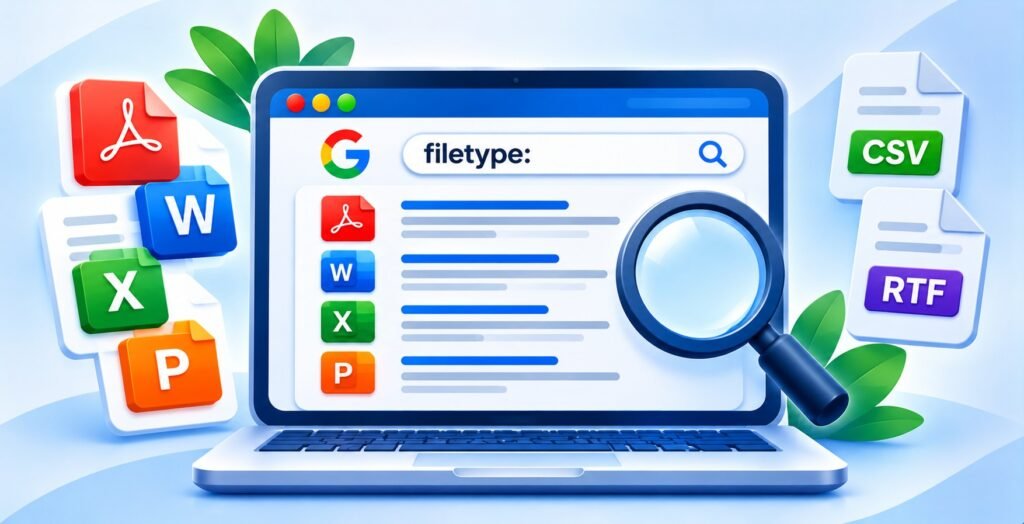
Now let’s look at a practical way to investigate indexed file formats.
Google provides a search operator called filetype: that allows you to filter search results by a particular file extension.
You can use it to find publicly discoverable documents in different formats.
Find PDF Files
If you want to find PDF documents related to NEET syllabus, search:
filetype:pdf NEET syllabusGoogle will try to show relevant results in PDF format related to your search query.
Find Excel Files
To find Excel spreadsheets related to SEO reports:
filetype:xlsx SEO reportFind Word Documents
To find Word documents related to digital marketing:
filetype:docx digital marketingFind PowerPoint Presentations
To discover technical SEO presentations:
filetype:pptx technical SEOFind CSV Files
To search for keyword research datasets:
filetype:csv keyword researchFind RTF Documents
To find Rich Text Format documents related to digital marketing:
filetype:rtf digital marketingFind Specific File Types on a Website
You can combine the site: and filetype: operators to investigate files on a particular domain.
For example:
site:example.com filetype:pdfThis query can help you find PDF results associated with a specific website.
You can replace example.com with the domain you want to investigate.
Important: Google Search Operators are useful for research and investigation, but their results aren’t a guaranteed, exhaustive report of every indexed file on a website.
Use them as a starting point rather than treating them as a complete indexing database.
How to Use File Indexing Knowledge in a Technical SEO Audit

Knowing Google’s supported file formats is useful, but the real value comes from applying this knowledge during SEO audits.
Here are four practical use cases.
1. PDF Indexing Audit
If your website contains hundreds of PDF documents, you should check whether important files are discoverable in Google Search.
You can start with:
site:example.com filetype:pdfReview the results and identify which documents are appearing in Google.
Pay attention to important PDFs that contain valuable information but aren’t appearing in the results.
Remember that this operator only provides an indication of discoverable results, not a complete indexing report.
2. Duplicate Document Investigation
Another important use case is duplicate content investigation.
Suppose the same information is available in two formats:
- An HTML webpage
- A downloadable PDF document
You need to decide whether both versions provide independent value to users.
For example, an HTML page might contain a summary of a college admission process, while the PDF provides a complete downloadable admission prospectus.
In this situation, both formats may serve different user needs.
However, if the PDF is simply an identical copy of the HTML page without providing additional value, you should review your indexing strategy.
One technical detail is important here: PDF files don’t support HTML canonical tags in the same way as regular webpages.
Duplicate document management may require different controls, including appropriate HTTP headers and other available indexing controls.
Don’t automatically apply an HTML canonical tag strategy to every document format.
3. Competitor File Research
You can also use filetype searches for competitor research.
Suppose you want to investigate what downloadable resources a competitor has published.
Search:
site:competitor.com filetype:pdfThis can help you discover publicly accessible PDF resources on competitor websites.
You may find:
- Research reports
- Industry studies
- Educational guides
- Product documentation
- Downloadable resources
- Company presentations
This research can help you understand what types of resources competitors are publishing and identify content opportunities for your own website.
4. Server Configuration Audit
The fourth use case is checking server configuration.
During a Technical SEO audit, verify whether your server is returning the correct Content-Type header for different file formats.
You can use browser developer tools, Screaming Frog, or command-line tools for this purpose.
For example, run the following command:
curl -I https://example.com/sample.pdfThis command sends an HTTP HEAD request and displays the response headers.
In the output, check two important things:
HTTP Status Code: Confirm that the file returns the expected response status.
Content-Type: Verify that the server identifies the file using the correct MIME type.
For a PDF document, you would generally expect:
HTTP/2 200
content-type: application/pdf
If you find an incorrect Content-Type configuration, investigate it with your development or server management team.
This is a simple check, but it can help identify file delivery and processing issues that might otherwise go unnoticed during an SEO audit.
Related Post: How to Optimize Content for Google AI Overviews in 2026
Common SEO Mistakes Related to File Indexing

Let’s quickly go through some mistakes that I frequently see or would look for when auditing websites.
1. Assuming Every Supported File Will Be Indexed
Google supports several file formats, but that doesn’t guarantee indexing.
Crawling, accessibility, content quality, processing, and indexing eligibility still matter.
2. Uploading Documents Without Context
Publishing a PDF or Word document without linking it from a relevant webpage can make the resource harder for users to discover and understand.
Important documents should have a clear purpose and relevant supporting context.
3. Configuring the Wrong Content-Type Header
If your server returns an incorrect Content-Type header, Google may have difficulty identifying the actual file format.
Always verify server response headers during technical audits.
4. Ignoring Readability in Scanned PDFs
A scanned PDF may contain images of text rather than actual machine-readable text.
Consider using OCR to make the document’s text accessible.
5. Ignoring Image Optimization
Using a supported image format isn’t enough.
Descriptive filenames, meaningful alt text, relevant placement, and optimized file sizes are all important.
6. Assuming an MP4 Upload Completes Video SEO
A video file being supported doesn’t automatically make it eligible to appear in Google Video Search.
Video information, thumbnails, structured data, relevant webpages, and crawlability also matter.
7. Treating the Filetype Operator as a Complete Indexing Report
The filetype: operator is useful for investigation, but it doesn’t provide a guaranteed list of every indexed file.
Don’t use it as your only method of evaluating file indexing.
Final Thoughts
So, does Google index only HTML webpages?
No. Google can process and index several file formats, including PDFs, Word documents, Excel spreadsheets, PowerPoint presentations, CSV files, text files, images, and videos.
But as an SEO professional, knowing the supported file extensions is only the starting point.
You also need to understand how Googlebot crawls these resources, how servers identify file formats through Content-Type headers, whether documents contain readable content, and whether those resources provide genuine value to users.
This knowledge becomes particularly useful when working on Technical SEO audits, PDF indexing investigations, competitor research, image optimization, and Video SEO.
The next time you’re auditing a website, don’t limit your investigation to HTML URLs. Check the other resources your website publishes as well.
They may contain valuable content and additional opportunities for organic search visibility.
If you enjoy practical guides on Technical SEO and Advanced SEO, subscribe to SEO Shades and explore more SEO tutorials at SEO Shades.
Frequently Asked Questions (FAQs)
Does Google index PDF files?
Yes. Google can crawl and index PDF files if they are accessible, contain processable content, and meet Google’s indexing requirements. Their content may appear directly in Google Search results.
Which file types can Google index?
Google supports several file formats, including PDF, DOC, DOCX, XLS, XLSX, PPT, PPTX, CSV, TXT, XML, HTML, SVG, and various image and video formats.
How can I check if Google has indexed PDF files from my website?
Use Google’s site: and filetype: search operators. For example, search site:example.com filetype:pdf to find publicly discoverable PDF results from your domain.
Does Google automatically index every supported file format?
No. Supporting a file format doesn’t guarantee indexing. Google considers factors such as crawlability, server responses, content accessibility, content quality, and indexing eligibility.
Why is the Content-Type HTTP header important for SEO?
The Content-Type header helps Google identify the format of a file returned by your server. An incorrect or missing header may affect file identification and processing, so checking it is an important part of a Technical SEO audit.





Comments
No comments yet. Be the first to share your thoughts or ask a question.